

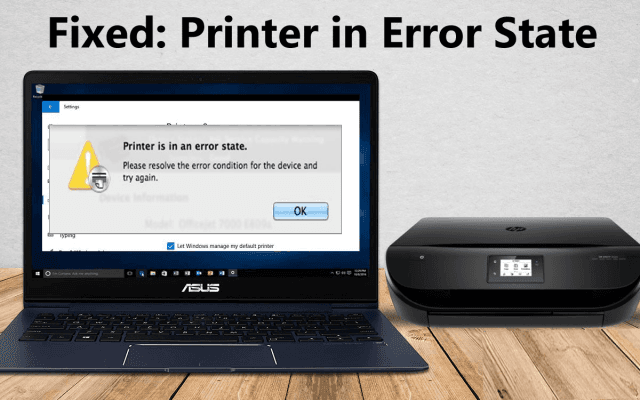
What Causes a Printer Error State?
If your printer is in an error state, it means that, for some reason, your printer is unable to respond to your requests. A printer can end up in an error state thanks to any number of issues. Some of the most common problems include:
- Cables and wires that are not properly connected (or are no longer working correctly)
- Corrupted printer drivers
- Lack of an internet connection
- Malware or virus attack
- Recent computer upgrades
When one of these errors occurs, it disrupts the communication between your computer and printer and forces your printer in an error state. Luckily, with the help of several easy troubleshooting steps (below), it is usually possible to reset your printer connection and ultimately resolve the error.
Solutions for a Printer in Error State
If your computer/printer enters an error state, you don’t always need to take it in for repair. Most error states can be solved quickly, at home, using one (or more) of these seven solutions:
1. Start with the Basics: Cables and Cartridges
A printer can often enter an error state thanks to something as simple as an unplugged cable or misaligned cartridge. Simple physical malfunctions are the easiest to fix and typically the ones we tend to overlook.
Before going further, take a moment to check on the physical status of your printer. Ensure that all cables and power cords are properly connected and do not have any noticeable cuts or bends that may be impacting their function. If your printer is connected to the internet via an Ethernet cable, ensure that the cable is attached to an active Ethernet port. If you have any doubts, try connecting cords to comparable/alternative sockets (such as on a router) or testing other cords from a known working device.
Check that there is paper in the paper tray and that the printer is not suffering from a paper jam. Ensure that the printer ink cartridges are all properly installed and contain ink. This can be checked using a printer test page.
2. Restart Your Devices
This is a tried and true solution with all sorts of electronic devices because the reboot process is typically designed to address any error states that may be present. To restart your printer, turn your printer off, unplug the power cord, and let it sit for at least 30 seconds. Plug your printer back in and turn the printer back on.
To restart your computer, you want to ensure you are doing a full restart, not just placing it in sleep mode and then waking it up.
3. Check Network Connections
If you are using a wireless connection to connect your device to your printer, you may receive an error state if this connection is not active. Fortunately, on many newer printer models, you can use your printer control panel to identify your WiFi connection status.
From the control panel, select the network settings function and press “Confirm Network Settings.” This will show you the current status of your printer’s internet connection.
It is not only necessary for both your device and printer to be connected to WiFi; they must also both be connected to the same WiFi to communicate.
4. Manually Set Printer Online
Sometimes an error state can be caused by your computer rather than your printer. If your computer refuses to communicate with your printer because it believes the printer is offline, your printer will respond with an error state. You can combat this error by manually setting your printer online.
To manually set your printer online with Windows:
- Click on the “Start” button on your computer and select “Control Panel” from the list.
- In the window that appears, select “Devices and Printers” (or the equivalent menu option).
- Click on “Printer” on the top menu of the “Devices and Printers” window and select “Use Printer Online” in the drop-down menu.
To manually set your printer online with MacOS:
- In the “Apple” menu, click “System Preferences” and select “Print & Scan.”
- If a yellow light appears next to your printer’s name, double-click the icon for your printer. Click “Resume” from the window.
5. Set Your Printer as the Default Printer
Similar to the situation above, when your computer attempts to communicate with the wrong printer, the miscommunication can cause your printer to report an error state. Ensuring your printer is set as the default printer can help streamline the communication process and counteract this error state.
To manually set your printer as the default printer with Windows:
- Click on the “Start” button on your computer and select “Control Panel” from the list.
- In the window that appears, select “Devices and Printers” (or the equivalent menu option).
- Select your printer from the resulting window, and then select “Open Queue.”
- Under the “printer” drop-down, select “Set as Default Printer.”
To manually set your printer as the default printer with MacOS:
- In the “Apple” menu, click “System Preferences” and select “Print & Scan.”
- Click “Default Printer,” then select your printer as the default printer option.
6. Uninstall and Reinstall Your Printer
If the error state persists, you can always give your printer and computer a fresh start by removing the printer from your computer and then reinstalling it. This will allow the connection between your computer and printer to start from scratch so that they can hopefully avoid any errors that previously occurred.
To remove and reinstall a printer with Windows:
- Click on the “Start” button on your computer and select “Control Panel” from the list.
- In the window that appears, select “Devices and Printers” (or the equivalent menu option).
- Right-click on your printer and select “Remove device.”
- To reinstall the printer, click “Add a Printer” on the “Devices and Printers” window and follow the prompts.
To remove and reinstall a printer with MacOS:
- In the “Apple” menu, click “System Preferences” and select “Print & Scan.”
- Right-click anywhere in the “Print & Scan” window and select “Reset Printing System.” This will remove your printer from the computer.
- Once the reset is complete, select “Add Printer or Scanner” and select your printer. Follow the subsequent prompts to reinstall your computer.
Tips for Troubleshooting HP Printer Problems
Paper Jams
Starting with the most common printer error you’ll encounter with any printer, let’s discuss how to remove a paper jam from your HP printer. Here are some possible reasons your HP printer is experiencing a paper jam:
- Your printer is dirty,
- You’ve used the wrong type of paper
- The rollers that feed paper through your printer’s pathway are worn out
You can avoid the first two issues fairly easily by periodically cleaning your printer and making sure you load the right size and style paper. However, depending on your HP’s model, the rollers may be hard to access. In this case, you may need professional assistance removing and replacing its rollers. Whatever the cause for the paper jam, make sure you always pull the jammed paper in the direction of the paper path. Pulling it backwards can result in damage to your printer.
Faded Print Image
If the images you are printing are coming out looking faded, it’s usually a result of these problems:
- Your printer is low on toner
- The print density is set too low
- Economode printing is turned on
If you suspect you toner to be the culprit, simply removing the cartridge and shaking it a bit will redistribute the toner and may temporarily solve the problem. You will also need to replace your toner. If your toner is full, performing self-test will help you determine the current settings. There is typically a separate button on your HP printer that will show your current settings, or you might need to use the control panel to navigate through the printer menu and find the relevant settings.
Toner Smears
If you’re experiencing smearing on your printed pages here are the possible causes:
- The fuser assembly is damaged or nearing the end of its life.
- The toner cartridge is defective and releasing too much toner at one time.
- There is a toner spill within the printer.
- The paper type isn’t suitable for toner
If your fuser assembly is the source of the issue, it will need to be replaced. If the issue is with your toner cartridge, you’ll want to replace it. Keep in mind, if you’re working with a color printer, you will only need to replace the cartridge that is causing problems. If you discover that the toner has spilled, simply clean it out to fix the issue.
Ghosting
Ghosting (in printers) happens when you print an image successfully, but a lighter “ghost-like” copy of that same image prints elsewhere. This can happen if there is an issue with the power outlet to which your printer is connected. Check to see if the issue persists when you plug your printer into a different outlet. Ghosting can also occur if certain parts of your printer, such as its drum or imaging kit are nearing the end of their life. These parts are meant to last for a certain amount of use, and need to be replaced once they hit the limit number.
50.4 Error Message
On newer HP LaserJet devices and printers, a 50.4 error message points to a problem with your power supply. Try disconnecting then reconnecting your printer to see if the error goes away. If this doesn’t take care of the problem, check to see that all of the parts of the printer are properly seated.
79 Error Message
In HP printers, a 79 error message could be a result of network problems, or it can also be caused by a failure of one of your printer’s add-on components, such as an MIO card or a RAM module print server. When following troubleshooting steps for a 79 error, go into the Start menu and open the “Printer” folder to see there are no jobs pending. All add-ons should be removed and then added back to the printer one at a time to identify which component is causing the problem.
Printing From the Wrong Paper Tray
To fix this problem, check your application to see if it’s set to print to the wrong paper tray. If you find that it is, simply correct it by clicking on “Printer Properties” and locating the “Tray Selection” source. Also, make sure that the paper size matches that of the tray you are trying to print from.
Missing Driver for Your Operating System
With the release of new operating systems, you will need to load new drivers to your existing printers. Since not every printer has a driver for each operating system, we recommend that you consult the printer manual to figure out which printers these drivers will emulate. Some functionalities of the printer may not be available under this emulation, but it will be able to perform basic printing tasks.
HP printers are certainly among the most reliable in the industry. But if you do run into these common issues, we hope our guide assists you in efficiently HP Printers troubleshooting and fixing the existing problems.